So, you decided to live dangerously and check out what’s happening in the Canary Channel? I can’t blame you. We’ve all been waiting for something juicy to drop in the Insider program for weeks, and honestly, the silence felt like an eternity. But finally, Microsoft pushed the big red button on Windows 11 Build 28020.1362, and it is arguably one of the most interesting updates we’ve seen in the 26H1 branch so far.
If you’re running a Copilot+ PC or just love tinkering with the latest (and occasionally unstable) software, this build has your name on it. We aren’t just looking at boring background tweaks here. We have actual, tangible changes—new gaming modes, a smarter File Explorer, and finally, finally, some respect for Dark Mode consistency. I’ve been testing this out on my main rig (yes, I know, risky move), and I have some thoughts. Let’s break down everything you need to know about this release.
The Big One: Xbox Full Screen Experience (FSE) goes Mainstream
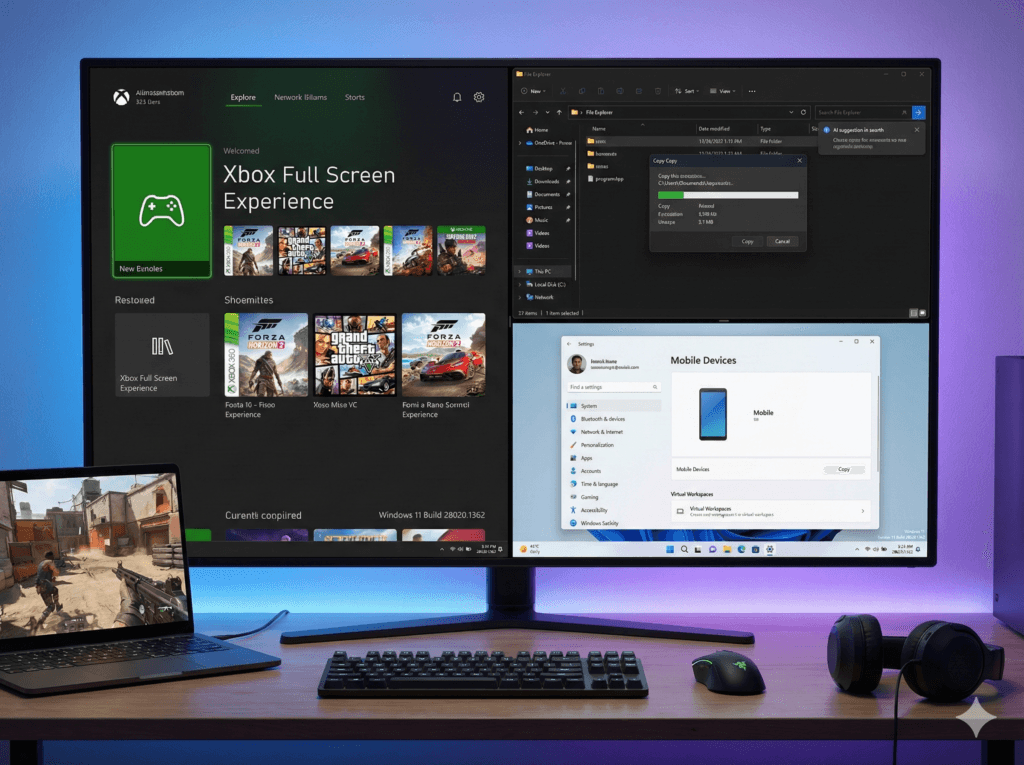
Let’s start with the fun stuff. If you own a handheld like the ASUS ROG Ally, you probably know the pain of navigating standard Windows on a tiny screen. Microsoft heard those complaints loud and clear. In this build, they expanded the Xbox Full Screen Experience (FSE) beyond just specific handhelds. They are now testing it for traditional PCs and laptops too.
Why This Actually Matters for Gamers
This isn’t just a pretty skin. When you toggle this mode, the system suppresses the standard Windows Explorer shell. Why should you care? Because it minimizes background tasks that usually hog your resources. Microsoft claims this can free up roughly 2GB of system memory.
Think about that for a second. That is 2GB of RAM going straight to your game instead of keeping your desktop icons organized. If you game on a system with 16GB of RAM or less, that is a massive performance boost. I tried this on my laptop, and the difference in stuttering was noticeable immediately.
- Console Vibes: You get a controller-friendly launcher that feels like an actual console interface.
- Easy Access: You can turn it on via Settings > Gaming > Full screen experience.
- Hotkeys: Just hit Win + F11 if you want to jump in quickly.
FYI, they also updated the Game Pass branding in the Settings app to match the 2025 structures. It’s a small detail, but it shows they are paying attention.
If you are looking to upgrade your setup to take advantage of these new gaming features, you might want to check out some compatible gear here: https://amzn.to/4b009yz
File Explorer Finally Gets Its Act Together
We need to talk about File Explorer. For years, using Dark Mode felt like a half-measure. You would have your sleek dark window, but the moment you copied a file, a blinding white dialog box would pop up and burn your retinas. Well, I am happy to report that Build 28020.1362 finally fixes this.
Consistent Dark Mode Support
Microsoft updated the core file operation dialogs. Now, when you copy, move, or delete files, the progress bars and confirmation windows actually respect your theme choice.
- Progress Bars: Dark themed and modern.
- Error Dialogs: No longer look like they came from Windows 98.
- Recycle Bin Prompts: Fully integrated into the dark aesthetic.
It sounds like a small visual tweak, but when you work late at night like I do, these inconsistencies drive you crazy. Seeing a uniform UI makes the OS feel polished in a way it hasn’t in a long time.
AI Invasions and Metadata Fixes
If you own a Copilot+ PC, File Explorer is getting smarter. The search box now suggests AI-driven actions. Instead of just searching for a file name, you might see placeholder text like “Try describing an image.”
They also added hover actions in File Explorer Home. You can hover over a file and instantly see options to “Open file location” or “Ask Copilot.” It saves a click, and I’m all for efficiency. On the technical side, they fixed an annoying bug where video thumbnails refused to load if the file had weird EXIF metadata. If you are a photographer or video editor, you will appreciate that one.
Settings & System UI: Cleaning House
The Settings app is undergoing some structural renovations. Microsoft seems determined to centralize everything, which unfortunately means the slow, painful death of the Control Panel continues.
The New AI Agent
If you are on the fancy silicon (NPU-centric designs), you get a new AI Agent in Settings. This is basically a natural-language helper. Instead of digging through menus to find “mouse acceleration,” you can just ask the agent to help you troubleshoot or change a setting.
Is it useful? IMO, yes, especially for non-tech-savvy users. But for us power users, it might feel a bit like overkill. Still, it’s the direction the OS is heading, so we might as well get used to it.
Virtual Workspaces and Mobile Devices
They added a new “Mobile Devices” page under Bluetooth & Devices. This replaces the old “Phone Link” entry points. It’s a much cleaner way to manage your phone, especially if you use it as a connected camera.
Another huge addition is Virtual Workspaces under System > Advanced. You can now toggle:
- Hyper-V
- Windows Sandbox
- Virtual Machine Platform
You can do all this from one single location. No more hunting through “Turn Windows features on or off” in the legacy interface. This is a massive win for developers.
Crucial Fixes You Actually Care About
Features are great, but stability is king. Canary builds are notoriously unstable, but this update patches some regressions that were genuinely frustrating me in previous builds.
The Task Manager Zombie Bug
Did you notice Task Manager eating up resources even after you closed it? You weren’t paranoid. There was a memory-related issue where Task Manager would keep running in the background, leading to multiple instances piling up. They squashed that bug in this build.
Windows Update and Graphics
There was a terrifying bug where hitting “Update and shutdown” wouldn’t actually shut down the PC. It would just update and restart, or hang. They fixed that underlying issue.
Also, gamers rejoice: they resolved a bug where certain games would throw an “Unsupported graphics card detected” error even if you had a top-tier GPU. Imagine buying a 4090 and having Windows tell you it’s unsupported. :/ That nightmare is over.
The Technical Stuff: What is 26H1 Anyway?
Let’s take a step back and look at the bigger picture. Why are these changes happening now? The 26H1 branch is what Microsoft calls a “platform-lead” development cycle.
Basically, this update is prepping the ground for new hardware arriving in early 2026, specifically devices running next-gen silicon codenamed “Bromine” (think Snapdragon X2).
Here is the timeline context:
- Nov 7, 2025: We saw the first Canary build (28000) for this branch.
- Dec 15, 2025: This build (28020.1362) dropped, stabilizing the UI.
- Early 2026: We expect the General Availability (GA) alongside new laptops.
Microsoft is clearly separating “Silicon Enablement” from general feature updates. While we are testing this now, a lot of the AI stuff is gated behind having a dedicated NPU.
- STREAMLINED & INTUITIVE UI, DVD FORMAT | Intelligent desktop | Personalize your experience for simpler efficiency | Powe…
- OEM IS TO BE INSTALLED ON A NEW PC with no prior version of Windows installed and cannot be transferred to another machi…
- OEM DOES NOT PROVIDE SUPPORT | To acquire product with Microsoft support, obtain the full packaged “Retail” version.

- Instantly productive. Simpler, more intuitive UI and effortless navigation. New features like snap layouts help you mana…
- Smarter collaboration. Have effective online meetings. Share content and mute/unmute right from the taskbar (1) Stay foc…
- Reassuringly consistent. Have confidence that your applications will work. Familiar deployment and update tools. Acceler…

- Beginner watch video instruction ( image-7 ), tutorial for “how to boot from usb drive”, Supported UEFI and Legacy
- Bootable USB 3.2 for Installing Windows 11/10/8.1/7 (64Bit Pro/Home ), No TPM Required, key not included
- ( image-4 ) shows the programs you get : Network Drives (Wifi & Lan) , Hard Drive Partitioning, Data Recovery and More, …
FAQ: Windows 11 Build 28020.1362
Is the Xbox Full Screen Experience available on all PCs?
Currently, it is being tested on a wider range of devices, including traditional laptops and desktops in the Canary channel. However, its primary benefit (the 2GB RAM freeing) is most impactful on handhelds and lower-spec machines.
Do I need a Copilot+ PC for the new File Explorer features?
For the AI-driven search suggestions and the “Ask Copilot” hover actions, yes. However, the visual updates like the consistent Dark Mode in copy/paste dialogs are available to everyone running this build.
Is it safe to install this Canary build on my main computer?
Honestly? I wouldn’t recommend it. Canary builds are “hot off the presses” and can contain major bugs. Microsoft even warns that features here are experimental and might disappear. If you rely on your PC for work, maybe stick to the Dev or Beta channels.
What happened to the Control Panel?
It is still there, but it is shrinking. In this build, legacy settings like keyboard character repeat rate and cursor blink rate have moved to the Settings app. Microsoft is slowly migrating everything over.
Conclusion
Windows 11 Build 28020.1362 feels like a pivot point. We are moving away from just slapping new coats of paint on the UI and starting to see deep, architectural changes to support the next generation of AI hardware. The Xbox Full Screen Experience is a genuine game-changer for performance, and the File Explorer fixes show that Microsoft hasn’t forgotten about basic usability.
Sure, the AI stuff is heavily gated behind new hardware, which is a bit of a bummer if you just built a powerful desktop last year. But for the platform as a whole? It is looking slicker, faster, and more consistent.
Just remember, this is Canary. Things break. But if you enjoy living on the edge and seeing the future of Windows before everyone else, hit that update button. Just maybe back up your important files first, okay?